
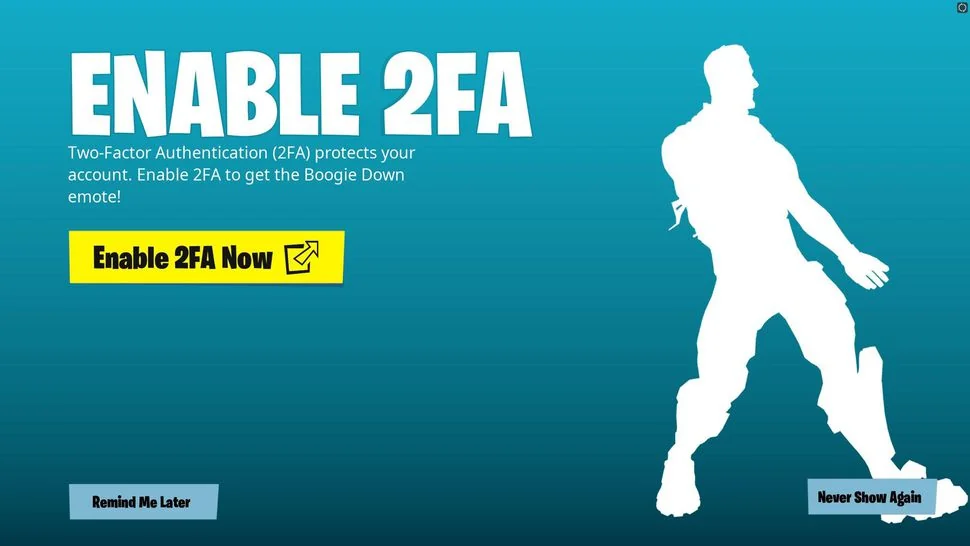
Enabling 2FA, or Two-Factor Authentication, is like using a Shield Potion for your Fortnite account. It adds an extra layer of protection so someone cannot easily access your account with just your password.
The benefits do not stop at security either. You need 2FA to send gifts in Fortnite, participate in competitive events, and claim free rewards like the Boogie Down Emote. If you own Save the World, you can also receive extra account rewards after enabling it.
In this guide, I’ll explain how to enable 2FA in Fortnite, why it is useful, and which 2FA method is best for your Epic Games account in 2026.
What is 2FA in Fortnite?
2FA in Fortnite adds a second verification step to your Epic Games account login. After entering your email and password, Epic may ask you for an extra security code from your email, phone, or authenticator app.
This means that even if someone gets your password, they still cannot log in without your second verification method.
2FA is not required just to play Fortnite, but it is required for some important account features, including gifting and competitive events. I strongly recommend enabling it even if you do not send gifts or play tournaments, because it protects your skins, V-Bucks, Battle Pass progress, and linked accounts.
Why You Should Enable 2FA
There are several good reasons to enable 2FA in Fortnite.
Protect Your Fortnite Account
The biggest reason to enable 2FA is account security. Fortnite accounts can have years of skins, emotes, V-Bucks, Battle Pass rewards, and purchases linked to them.
If someone gets access to your account, recovering it can be stressful. 2FA makes that much harder because every login requires a second verification code.
Managing your Epic account also means keeping an eye on active subscriptions, especially if you are paying for Fortnite Crew. If needed, follow our guide on how to cancel Fortnite Crew.
Required for Gifting
If you want to send gifts in Fortnite, 2FA must be enabled on your Epic Games account.
You also need to reach level 2 or higher, and the person you want to gift must be on your friends list for at least two days. Without 2FA, Fortnite will not let you send gifts.
Required for Competitive Events
Epic requires 2FA for Fortnite competitive events. If you want to participate in tournaments, Cups, or other competitive modes that require account security, enabling 2FA is one of the first things you should do.
Free Boogie Down Emote
After enabling 2FA, Fortnite Battle Royale players can unlock the Boogie Down Emote as a reward.
If you do not see it immediately, restart Fortnite and make sure 2FA is enabled on the same Epic Games account you use to play. If you purchased an item by mistake or someone made an unwanted purchase on your account, check how to refund items in Fortnite instead of changing your security settings repeatedly.
Extra Save the World Rewards
If you own Fortnite: Save the World, enabling 2FA can also give you extra rewards, including:
- 50 Armory Slots
- 10 Backpack Slots
- 1 Legendary Troll Stash Llama
These rewards are useful if you still play Save the World regularly.
Requirements Before Enabling 2FA
Before turning on 2FA, make sure you have these things ready:
Active Epic Games Account
You need an Epic Games account linked to your Fortnite profile. If you play on PlayStation, Xbox, Nintendo Switch, or mobile, make sure you are signing in to the correct Epic account.
Verified Email Address
Your Epic Games account should have a verified email address. This is important because email verification is needed for account recovery and email-based 2FA.
Access to Email, Phone, or Authenticator App
You need access to at least one 2FA method:
- Email address
- Mobile phone number
- Authenticator app
I recommend using an authenticator app as your main method and keeping email as a backup. 2FA also keeps your account safer from fake reward sites that promise free cosmetics. After securing your account, check how to get free skins in Fortnite safely.
How to Enable 2FA in Fortnite
You do not enable 2FA directly inside Fortnite. You enable it through your Epic Games account settings.
Enable 2FA Using the Epic Games Website
Follow these steps:
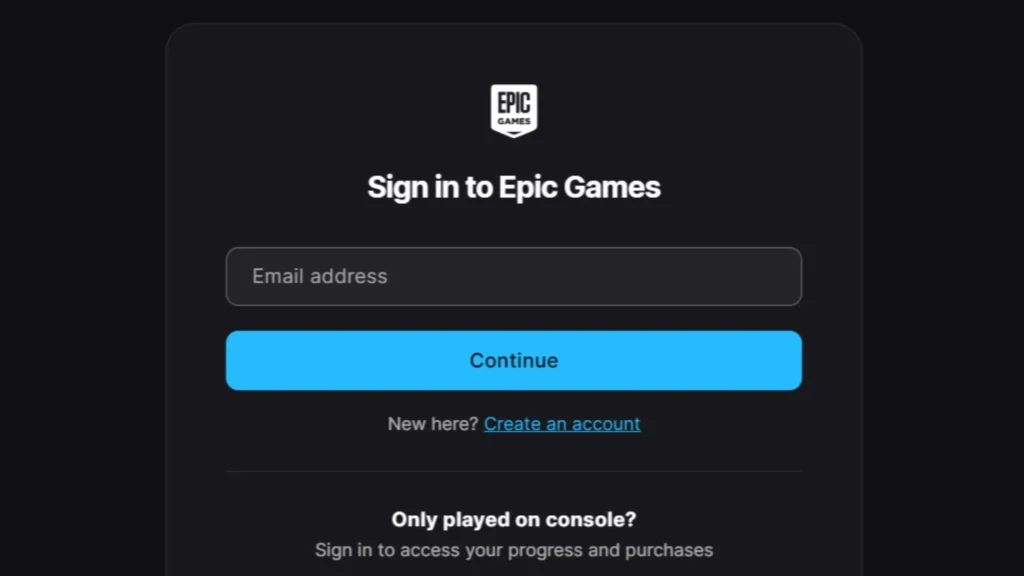
- Go to the Epic Games website.
- Sign in to the Epic Games account you use for Fortnite.
- Open your Account Settings.
- Go to Password and Security.
- Scroll down to the Two-Factor Authentication section.
- Choose your preferred 2FA method.
- Click Set Up next to that method.
- Enter the verification code sent through email, SMS, or your authenticator app.
- Confirm the setup.
- Check for the confirmation message or email.
Once complete, 2FA should be active on your Epic Games account.
How to Enable 2FA on PS5, Xbox, and Nintendo Switch
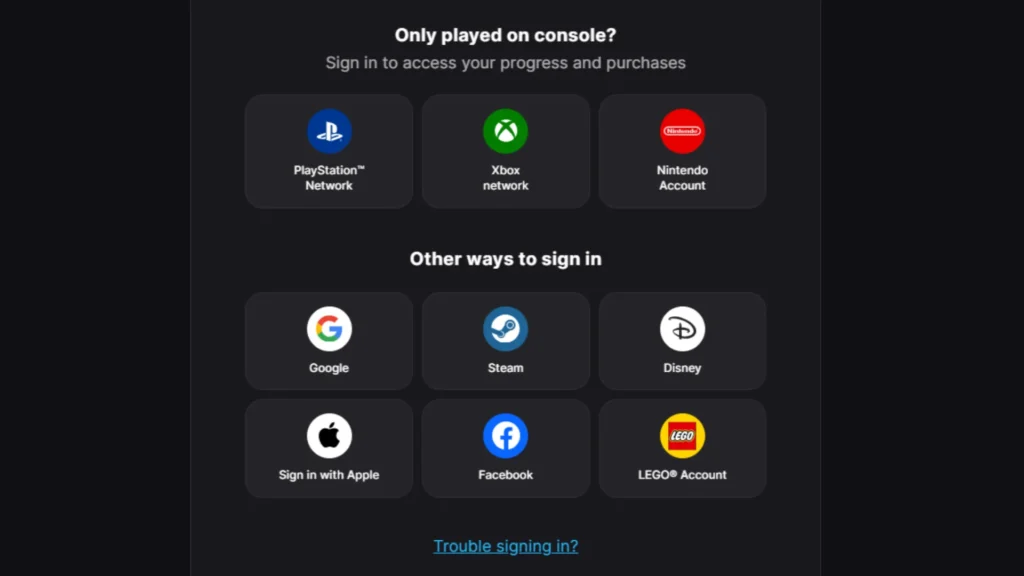
Console players also need to enable 2FA through Epic Games, not directly from the Fortnite console menu.
Follow these steps:
- Open the Epic Games sign-in page from a browser.
- Select the PlayStation, Xbox, or Nintendo Switch logo.
- Sign in using your console account.
- If Epic asks you to finish setting up your account, add the required email and account details.
- Go to Account Settings.
- Open Password and Security.
- Scroll to Two-Factor Authentication.
- Click Set Up next to your preferred method.
- Enter the verification code.
- Confirm the setup.
This will enable 2FA for the Epic Games account linked to your console Fortnite profile.
Important: If Fortnite still says 2FA is not active, you may have enabled it on the wrong Epic Games account. Sign in again using the same platform account you use to play Fortnite.
Types of 2FA Methods Explained
Epic Games gives you multiple ways to receive your 2FA code. Here’s how each method works.
Email Authentication
Email authentication sends the 2FA code to the email address linked to your Epic Games account.
This is the easiest method for beginners, but it depends on your email access. If your email is slow, full, blocked, or compromised, you may have trouble getting the code.
SMS Authentication
SMS authentication sends the code to your mobile number.
This is convenient because the code arrives directly on your phone. However, SMS may fail if your number changes, network coverage is poor, or messages are delayed.
Authenticator App
Authenticator apps are the best option for most players. Apps like Google Authenticator, Microsoft Authenticator, Authy, or similar trusted apps generate login codes directly on your phone.
To set it up, choose the authenticator app option in your Epic Games account, scan the QR code with your app, and enter the generated code to confirm.
I recommend this method because it is fast, secure, and does not depend on waiting for an email or SMS.
Backup Codes
When setting up an authenticator app, Epic may provide backup codes. These are important if you lose your phone, change devices, or cannot access your authenticator app.
Save backup codes somewhere safe, such as a password manager. Do not share them with anyone.
Which 2FA Method Should You Use?
The best setup is:
- Authenticator app as your main method
- Email as a backup method
- Backup codes stored safely
If you only use email, make sure your email account itself is secure. If your email gets hacked, your Epic account becomes easier to target.
If you use SMS, make sure your phone number stays updated in your Epic Games account.
How to Fix 2FA Not Working
If 2FA is not working in Fortnite or you are not receiving codes, try these fixes.
Check the Correct 2FA Method
If you are waiting for an email but your primary method is set to an authenticator app or SMS, the code may not arrive in your inbox.
Check which 2FA method is active in your Epic Games account settings.
Check Spam or Promotions Folder
If you use email authentication, check your spam, junk, promotions, or updates folder. Sometimes 2FA emails can be delayed or filtered.
Wait a few minutes and refresh your inbox before requesting another code.
Make Sure Your Email or Phone Is Correct
If your email address or phone number is outdated, you may not receive the code. Sign in to your Epic Games account and check your account details.
Sync Your Device Time
If you use an authenticator app, make sure your phone’s date and time are set automatically. Authenticator codes depend on correct device time, so an out-of-sync phone can generate invalid codes.
Try Another 2FA Method
If one method is not working, click Try another way on the 2FA screen. You may be able to use email verification or backup codes.
Check the Correct Epic Account
If Fortnite says 2FA is not active even after enabling it, you may have turned it on for a different Epic Games account.
This is common for console players who have more than one Epic account or who signed in with the wrong platform profile.
Restart Fortnite
If you enabled 2FA and the reward or gifting option does not appear immediately, restart Fortnite and check again.
Contact Epic Games Support
If you lost access to your email, phone number, authenticator app, and backup codes, contact Epic Games Support for account recovery help.
Tips to Keep Your Fortnite Account Safe
Enabling 2FA is important, but it is not the only thing you should do. Follow these extra safety tips:
- Use a strong and unique password.
- Do not share your Epic Games login details.
- Avoid free V-Bucks or free skin websites.
- Do not buy or sell Fortnite accounts.
- Keep your email account secure.
- Do not share backup codes.
- Enable more than one 2FA method if possible.
- Watch out for fake Epic Games login pages.
If a website asks for your Epic Games password to claim free rewards, avoid it.
Is 2FA required for gifting in Fortnite?
Yes, 2FA is required to send gifts in Fortnite. You also need to reach level 2 or higher, and the recipient must be on your friends list for at least two days.
Is 2FA required for Fortnite tournaments?
Yes, Epic requires 2FA for Fortnite competitive events and tournaments.
Why am I not receiving the 2FA code?
You may not be receiving the code because your primary 2FA method is different, the email is delayed, the code went to spam, your phone number is outdated, or your authenticator app time is out of sync.
Which 2FA method is best for Fortnite?
The authenticator app is the best option for most players because it is fast, secure, and does not rely on email or SMS delivery. Email is still useful as a backup method.
Do I get a free reward for enabling 2FA?
Yes, Fortnite Battle Royale players receive the Boogie Down Emote after enabling 2FA. Save the World owners can also receive extra rewards.
Can I disable 2FA later?
Yes, you can disable 2FA later from your Epic Games account’s Password and Security settings. However, keeping it enabled is strongly recommended for account safety.
Why does Fortnite say 2FA is not active after I enabled it?
This usually happens when 2FA was enabled on a different Epic Games account from the one you use to play Fortnite. Console players should sign in through their PlayStation, Xbox, or Nintendo account and check the linked Epic account.
Do I need 2FA to play Fortnite?
No, you do not need 2FA just to play Fortnite. However, you need it for gifting, competitive events, and account security rewards.
