
Let’s be real: being ashamed of the Fortnite username we picked years ago is a common experience. I’ve faced it, you’ve faced it, and almost everyone has. The reasons can range from corny to outdated to downright offensive.
Whatever the case, the steps to change your Fortnite name on PC, consoles, and mobile devices are straightforward. In case of consoles, there might be some fees and risks involved, so let me break it down for you:
Steps to Change Fortnite Name on PC
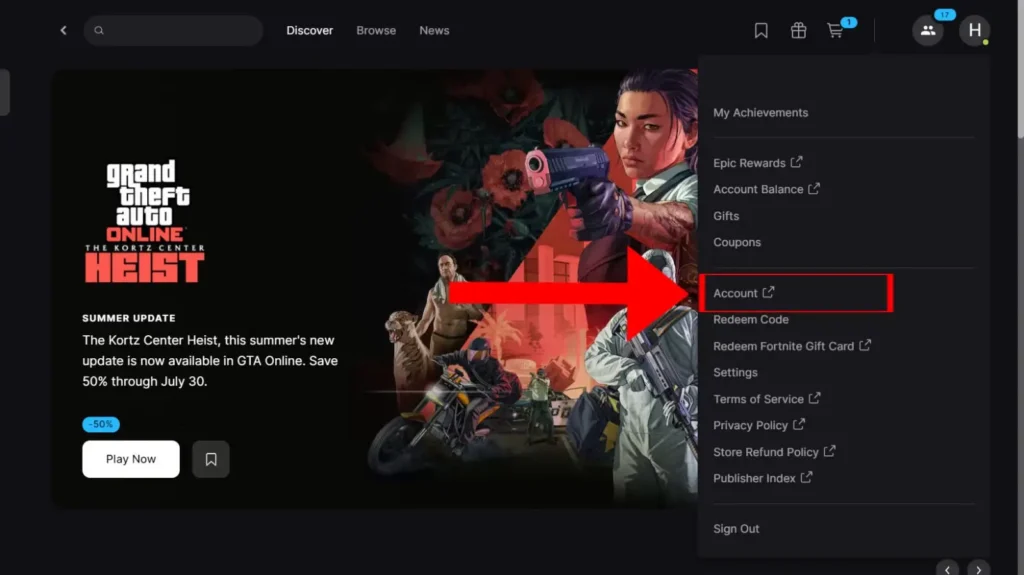
On PC, you can change your Fortnite name in the Epic Games application or via the Epic Games website:
- Download the Epic Games or sign in to the website.
- Click on your profile picture at the top-right.
- Click on Account -> Settings & Account Information -> Display Name.
- Click Edit (pencil icon) and enter the new name.
- Check the two-week confirmation box.
- Click Submit.
There’s a 2-week cooldown to your username change, so stick with one that resonates with your current self.
How To Change Your Fortnite Name On A PlayStation
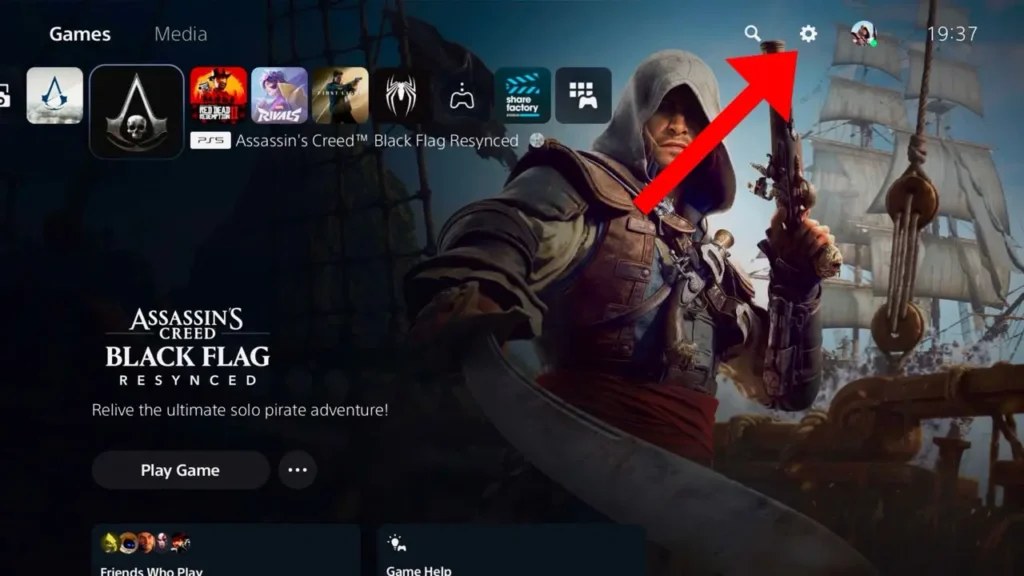
You can change your Fortnite display name either by logging into your console directly or by logging into the Epic Games website with your PlayStation credentials:
- Log in to your PlayStation console (PS4/PS5)
- Click the Settings -> Users and Accounts -> Account.
- Click Profile -> Online ID.
- Sign in to your PSN network again.
- Enter your new PSN gamertag and click Confirm
If this is your first time changing your PSN username, then it should be free. However, if it’s your second time or more, then you need to pay 10$ to change your username.
In addition, there are risks involved. You might lose some progress in specific games and their Achievements. So, change your display name for free through the official Epic Games website.
How To Change Your Fortnite Name on Xbox
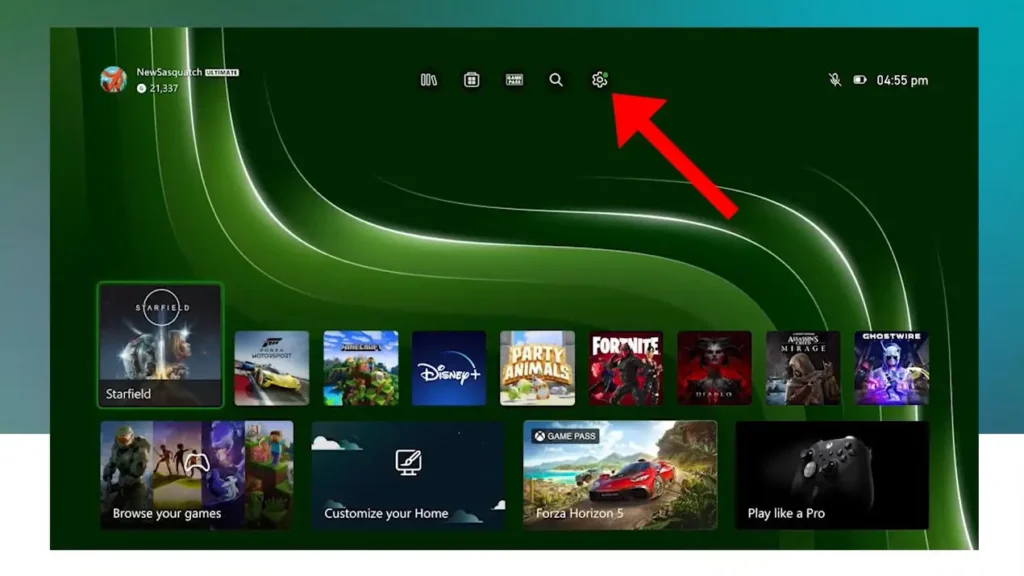
On Xbox, it’s almost similar to how you would change your name on PlayStation:
- Log in to your Xbox console.
- Click on the Settings -> Personalization -> Profile -> Customize my profile.
- Click on your previous username to start editing your new one.
- Enter your new username.
- Click Check availability -> Change gamertag to confirm.
Similar to PlayStation, your first gamertag change is free, but subsequent ones will require a $9.99 fee. Your Achievements or Gamerscore will not be affected.
How To Change Your Fortnite Name From the Epic Games Website
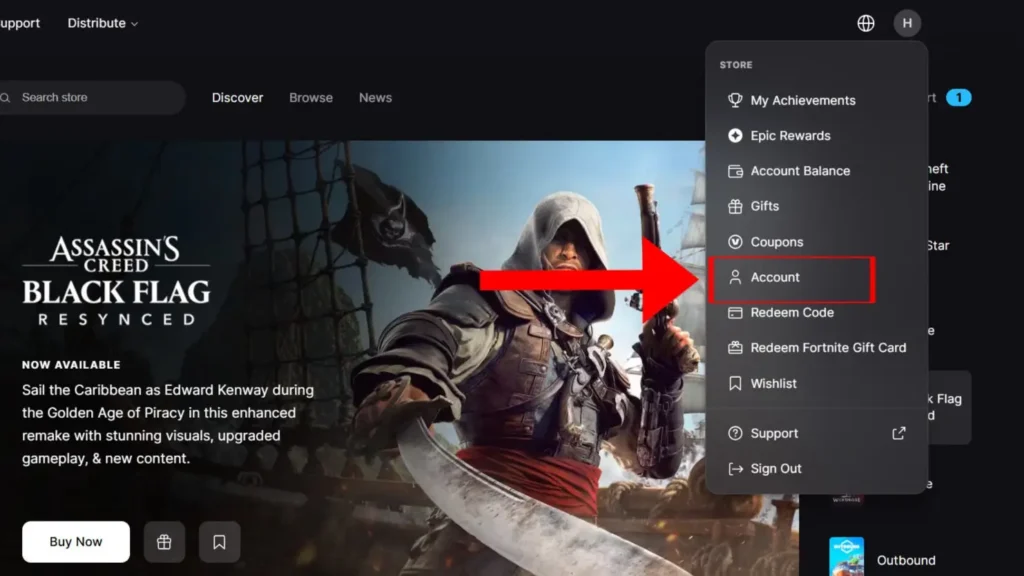
This one acts the same as changing your Fortnite name on PC, and can be used as an alternate method for both PlayStation and Xbox:
- Log in to your Epic Games account with your PlayStation credentials.
- Sign in to your PlayStation account.
- Click on your username located in the top-right corner.
- Select Account from the menu.
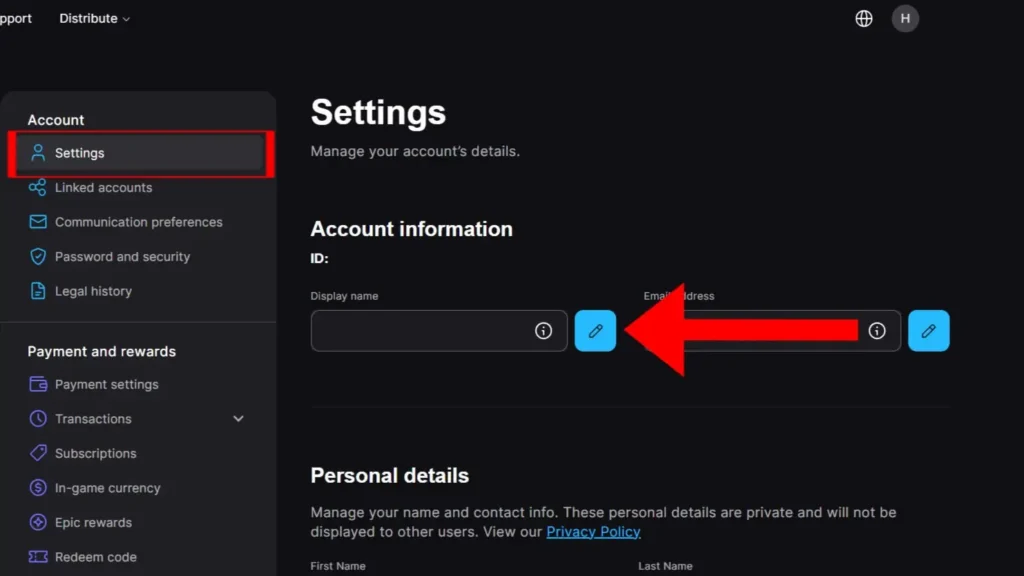
- Head to Settings and Account Information -> Display Name.
- Click Edit (pencil icon).
- Check the two-week box.
- Click Submit.
Now, this simply changes your Fortnite display name and not your PSN username. However, this is completely free of charge.
How To Change Your Fortnite Name on Switch

The steps to change your Fortnite name on Nintendo Switch are similar to PC. You need to alter your Epic Games display name instead of your Nintendo Profile name:
- Log in to the official Epic Games website using your Nintendo Account credentials.
- Select your profile picture, then click Account.
- Click Display Name -> Edit (pencil icon) and check the two-week box.
- Click Submit.
Steps to Change Fortnite Name on Mobile
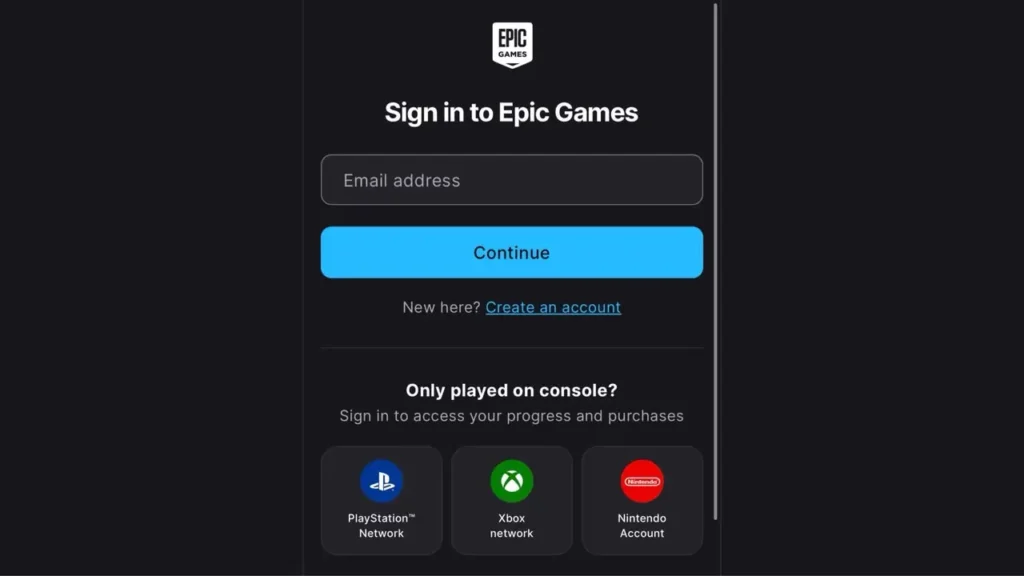
There are no separate methods to change your Fortnite name on mobile. Log in to your Epic Games website on your mobile with your respective credentials and follow the PC steps mentioned above to change it.
Likewise, there’s a 2-week cooldown before you can change it again. This changes both your Epic Games username and Fortnite display name.
Things to Know Before Changing Your Fortnite Name

Your Fortnite name change is a pretty big task, considering you need to stick with it for the foreseeable future. This rings truer if you’re on a console like PlayStation or Xbox, so keep these things in mind:
- 14-Day Cooldown Period: After changing your Fortnite/Epic Games display name, you’ll have to wait 2 weeks before you can change it again.
- Fees Involved: There are no fees involved in changing your Fortnite/Epic Games display name. For changing PSN/Xbox gamertag, it’s a $9.99 fee after your first change.
- Cabined Account: Cabined Accounts are basically accounts owned by players under the age of 13. For this, you need a parent/guardian’s permission through an email linked to your Fortnite account.
- Verified Email Address: A verified e-mail address is required to change your Fortnite name.
- Character Limit: Your username should be between 3 and 16 characters.
- Offensive Language: Your username will be outright denied under violation of the Epic Games guidelines if you enter the following:
- Vulgarity, hate speech, offensive or derogatory language of any kind
- Direct references to any Epic Games employee, product, service, or character
- Private Personal Information (Phone numbers, addresses, real names, etc.)
With all these things in mind, your new Fortnite name is only a few clicks away. A word of advice: go for something stylish that fits your current self. So, get out there, claim your new Fortnite name, and become a proud Victory Royale winner!
How many times can I change my Fortnite username?
There’s no limit to how many times you can change it over the years, but Epic Games only lets you update your display name once every two weeks.
Why didn’t my Fortnite username change on PlayStation or Xbox?
If you’re playing on PlayStation or Xbox, Fortnite may show your PSN Online ID or Xbox gamertag instead of your Epic Games Display Name. In that case, you’ll need to change your console account name separately.
Can I use special characters in my Fortnite username?
Yes, but not every character or name is allowed. If your username contains unsupported characters or breaks Epic Games’ guidelines, it won’t be accepted.
How do I find my current Fortnite username?
The easiest way is to sign in to your Epic Games account and check your Account Settings. That’s where you’ll see your current Epic Games display name.
Does changing my Fortnite name affect other Epic Games?
Yes, changing your Epic Games display name updates your name across supported Epic Games titles and services that use your Epic account.
