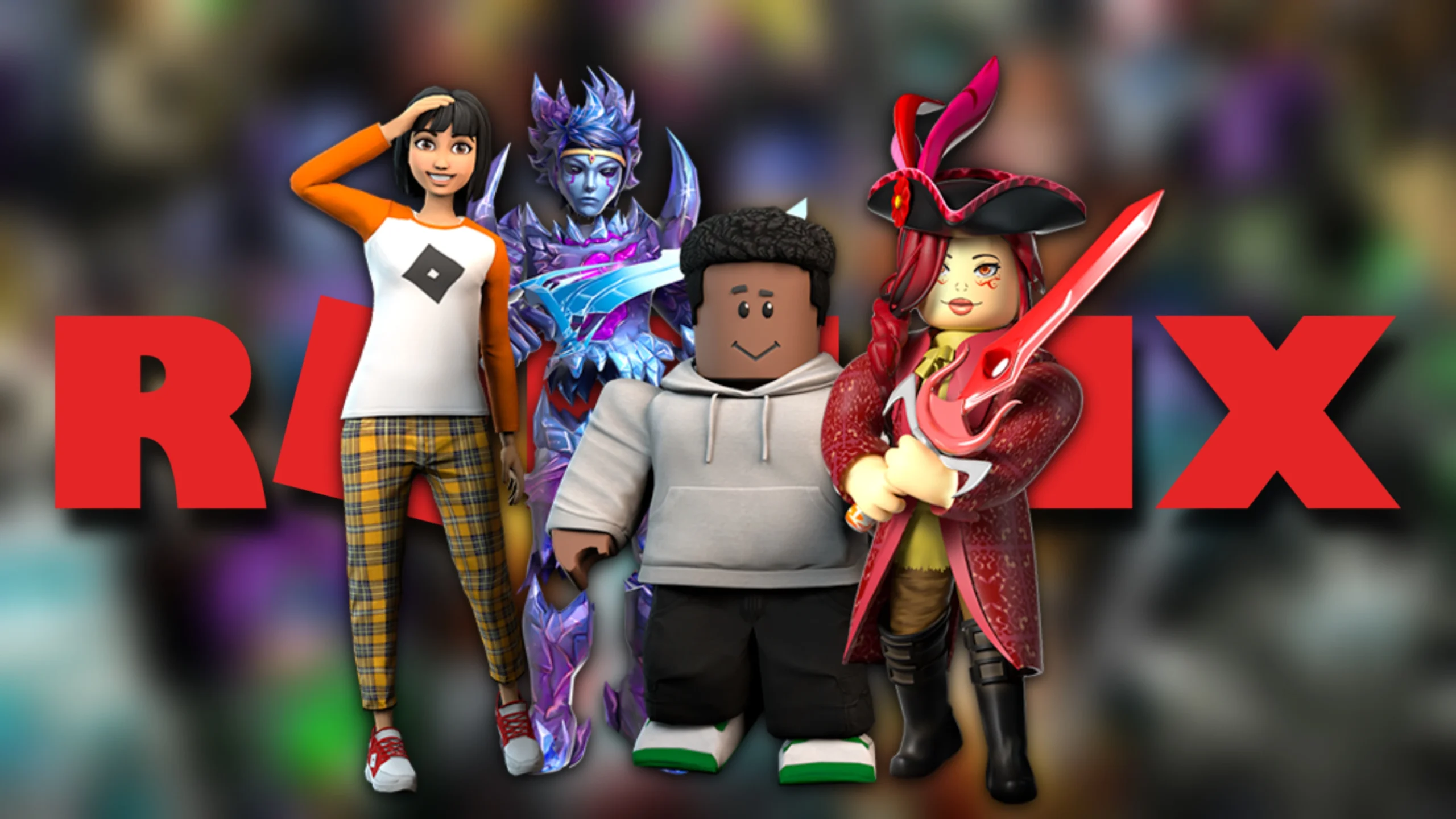
It always feels good to jump into an experience when your Roblox avatar looks stylish and personal. Your avatar is the first thing other players notice about you, and it also represents your identity across the platform.
Your Roblox avatar appears in supported experiences, on your profile, in social features, and sometimes in avatar-focused games like Dress to Impress. The best part is that you can customize almost everything, including clothing, accessories, hair, face, skin tone, body shape, animations, and saved outfits.
You also do not need Robux to create a good-looking avatar. Roblox offers free avatar items through the Marketplace, events, promotions, and basic customization options. However, if you want premium items, limited accessories, or more detailed looks, Robux can give you more choices.
In this guide, I’ll explain how to create and customize your Roblox avatar, access the Avatar Editor on different devices, get free avatar items, save outfits, and fix common avatar issues.
What is a Roblox Avatar?
What is a Roblox Avatar?
A Roblox avatar is your customizable 3D character on the platform. It represents you in supported Roblox experiences, on your profile, and in social areas such as friends lists and chat.
You can personalize your avatar with:
- Shirts
- Pants
- T-shirts
- Jackets
- Hair
- Hats
- Face accessories
- Back accessories
- Shoulder accessories
- Skin tones
- Body bundles
- Heads and faces
- Emotes
- Animations
- Saved outfits
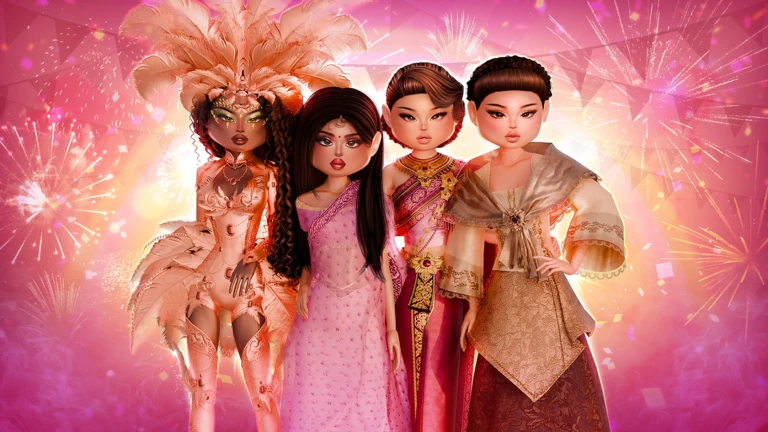
Roblox avatars can be simple and blocky, modern and detailed, or themed around a specific style. You can create a casual outfit, fantasy character, superhero-inspired look, roleplay avatar, or even a funny meme-style character.
How to Create and Customize Your Roblox Avatar
To create and customize your Roblox avatar, open the Avatar Editor, choose clothing, accessories, body features, skin tone, and animations, then save your look as an outfit if you want to use it again later.
Here are the basic steps:
- Log in to your Roblox account.
- Open the Avatar section.
- Choose Customize or open the Avatar Editor.
- Select clothing, accessories, body parts, skin tone, or animations.
- Equip the items you want to use.
- Save the final look as an outfit if needed.
Once saved, your avatar will appear across supported Roblox experiences. Some games may use their own custom character system, so your avatar may not look exactly the same in every experience.
How to Access the Avatar Editor in Roblox
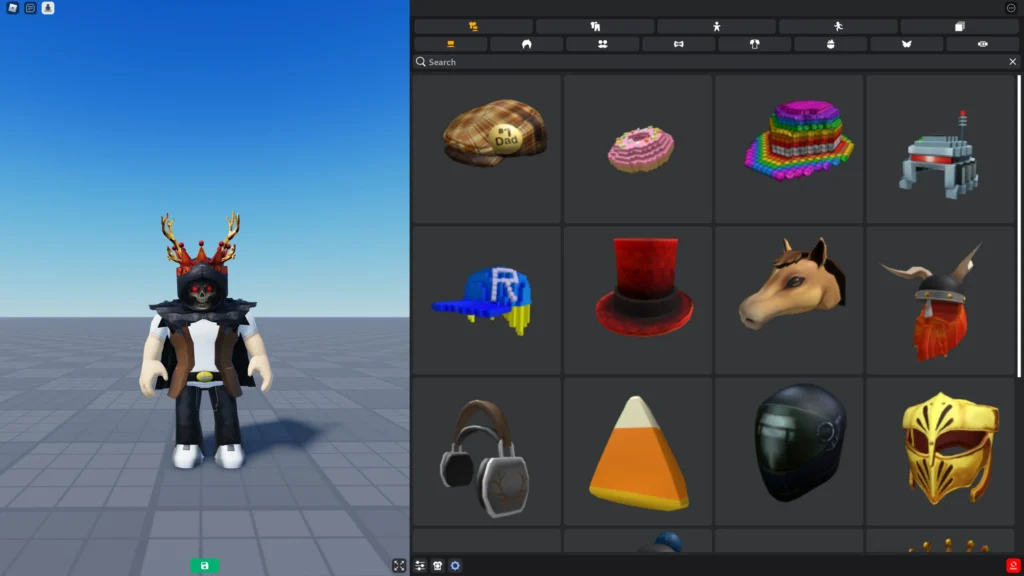
Roblox makes it easy to access the Avatar Editor on PC, mobile, and console. The exact menu may look slightly different depending on your device, but the process is mostly simple.
On Mobile Devices
Follow these steps on Android, iPhone, or iPad:
- Open the Roblox app.
- Log in to your Roblox account.
- Tap the Avatar icon or go to the More menu.
- Open Customize.
- Choose the category you want to edit.
- Equip or remove avatar items.
On mobile, you can change clothing, body items, accessories, skin tone, and other available avatar options.
On PC or Browser
Follow these steps on PC:
- Sign in to your Roblox account.
- Click Avatar from the left-side navigation menu.
- Open the Avatar Editor page.
- Select a category such as clothing, accessories, body, or animations.
- Click the item you want to equip.
- Click the equipped item again if you want to remove it.
On browser, you can also use advanced options for some accessory categories if you want to equip more items than the normal soft limit.
On Console
Roblox also lets you customize your avatar on console, though the layout may vary depending on whether you are using Xbox or PlayStation.
Follow these general steps:
- Launch Roblox on your console.
- Log in to your Roblox account.
- Go to the Avatar tab.
- Open the customization menu.
- Edit clothing, body, animations, or outfits.
- Save or apply your changes.
If you cannot find a specific avatar option on console, try editing your avatar through the Roblox mobile app or website instead. Some menus are easier to manage on PC or mobile.
How to Customize Your Roblox Avatar
Once you open the Avatar Editor, you can start changing different parts of your avatar. Roblox customization is flexible, so you can mix free items, premium items, classic clothing, layered clothing, accessories, and animation packs.
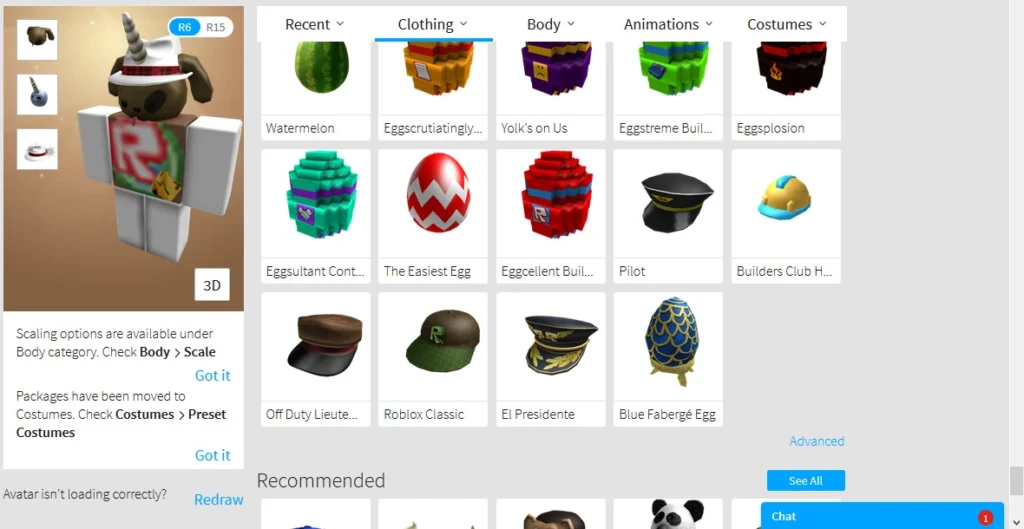
Change Body Features
Your Roblox avatar is not limited to clothing. You can also adjust the body, skin tone, head, face, and overall style.
Skin Tone
You can change your avatar’s skin color from the Avatar Editor.
On browser, go to:
Avatar > Head & Body > Skin Tone
From there, choose a color for your entire avatar. You can also use advanced options to apply different colors to individual body parts, such as arms, legs, head, or torso.
Body Style and Shape
Roblox supports different avatar body styles, from classic blocky avatars to more modern body bundles. You may also see body scaling options depending on your selected avatar type and available items.
Common avatar styles include:
- Classic blocky avatars
- Modern Roblox bodies
- Rthro-style bodies
- Slender or realistic-looking bundles
- Custom creator-made avatar bodies
R6 and R15 are not exactly “fashion styles.” They are avatar rig types used by Roblox experiences. Some games support modern avatar movement and layered clothing better, while others may force a simpler avatar style.
Because of this, your avatar may look slightly different in some games.
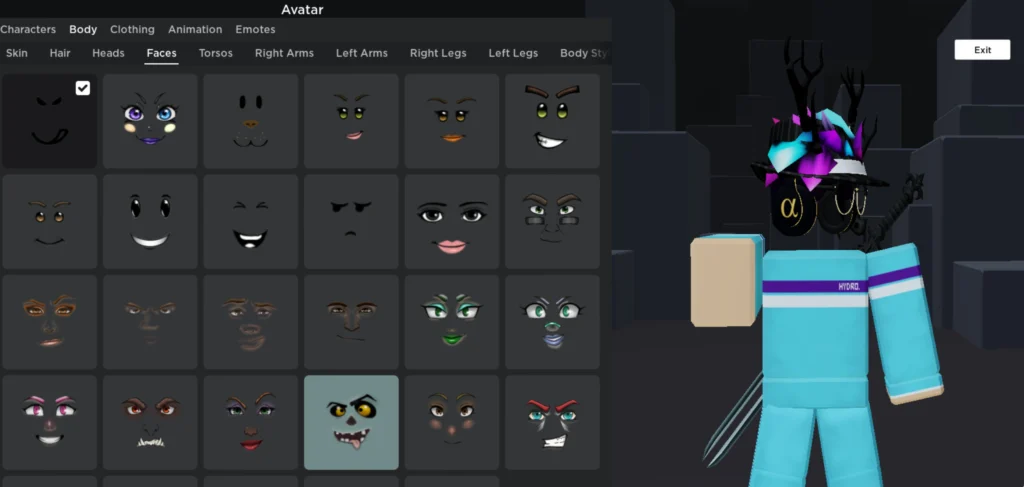
Faces and Heads
You can change your avatar’s face or head from the Avatar Editor if you own different options. Some are free, while others require Robux.
Faces and heads can completely change your avatar’s personality, so choose one that matches your outfit theme.
Animations
Animations control how your avatar moves. They can change your walking, running, jumping, climbing, swimming, falling, and idle style.
To change animations:
- Open the Avatar Editor.
- Go to the Animations section.
- Select an animation pack you own.
- Equip the movement style you want.
Some Roblox experiences use custom animations, so your selected animation pack may not appear everywhere.
Add Clothing Items
Add Clothing Items
Clothing is the easiest way to make your Roblox avatar look unique. You can create a clean casual outfit, a themed character, a fantasy look, or something funny using clothing and accessories.
Shirts
Shirts are one of the most common avatar clothing items. You can equip classic shirts, layered shirts, jackets, sweaters, and other upper-body items depending on what you own.
To equip a shirt:
- Open the Avatar Editor.
- Go to Clothing.
- Select the shirt or top you want.
- Click or tap it to equip.
Pants
Pants work similarly to shirts. You can choose classic pants or layered clothing depending on your avatar style.
Matching your shirt and pants properly is one of the easiest ways to make your avatar look polished.
Accessories
Accessories can make your avatar stand out. Roblox includes many accessory types, such as:
- Hats
- Hair
- Glasses
- Face accessories
- Neck accessories
- Shoulder items
- Back accessories
- Waist accessories
You can equip multiple accessories, but try not to overload your avatar. A simple outfit with a few matching accessories usually looks better than a cluttered one.
Use Avatar Shop
The Avatar Shop, also called the Marketplace, is where you can find new avatar items. It includes clothing, accessories, heads, bundles, animations, emotes, and other customization items.
You can use the Marketplace to:
- Browse new avatar items
- Find free items
- Buy premium items with Robux
- Search by category
- Filter by price
- Check creator-made items
- Discover trending styles
Not every Marketplace item costs Robux. You can use filters to find free items and claim them directly to your account.
Before buying anything, check the item preview carefully. Make sure it fits your avatar style and works with the body type you use.
How to Get Free Avatar Items in Roblox
You do not need Robux to make a good avatar. Roblox often has free items available through the Marketplace, events, promotions, and official reward campaigns.
Use the Free Items Filter
The easiest way to find free avatar items is through the Marketplace.
Follow these steps:
- Open the Marketplace or Avatar Shop.
- Choose a category such as accessories, clothing, or bundles.
- Open the price filter.
- Select Free or set the price to 0 Robux.
- Claim the item you want.
Free items can change over time, so check the Marketplace regularly.
Join Events and Promotions
Roblox sometimes runs events, brand collaborations, and in-experience promotions that reward players with free avatar items.
These may require you to:
- Complete quests
- Join a specific experience
- Watch an event
- Claim a reward from an official event page
- Participate during a limited-time campaign
Always check the official Roblox event page, in-game event instructions, or trusted Roblox announcements before claiming promotional items.
Redeem Promo Codes
Roblox has offered promo codes in the past for free avatar items. These codes can usually be redeemed through Roblox’s official code redemption page.
However, promo codes are not always active, and many old codes expire. Avoid websites that claim to offer unlimited free items or ask for your password.
A real promo code should never require your login details outside the official Roblox website.
Avoid Fake Free Item Scams
Be careful with websites, videos, or apps that promise unlimited free Robux, free Limiteds, or rare avatar items.
Avoid anything that asks for:
- Your Roblox password
- Personal information
- Email verification through suspicious links
- External downloads
- Human verification surveys
- Payment details
Only claim avatar items through official Roblox pages, the Marketplace, trusted platform stores, or in-experience event systems.
How to Save and Switch Avatar Outfits
Roblox lets you save multiple avatar outfits so you do not have to rebuild your look every time. This is useful if you want different outfits for different moods, games, events, or roleplay styles.
Follow these steps to save an outfit:
- Open the Avatar Editor.
- Customize your avatar with the items you want.
- Go to the Outfits or Creations section.
- Choose Create New Outfit or the available save option.
- Name the outfit.
- Save it.
To switch outfits later:
- Open the Avatar Editor.
- Go to Outfits or Creations.
- Select the saved outfit.
- Apply it to your avatar.
Saved outfits are helpful if you play fashion games, roleplay games, seasonal events, or content creation experiences.
However, some Roblox experiences may use their own custom clothing or character system. In those games, your saved Roblox outfit may not fully apply.
Best Tips to Create a Unique Roblox Avatar
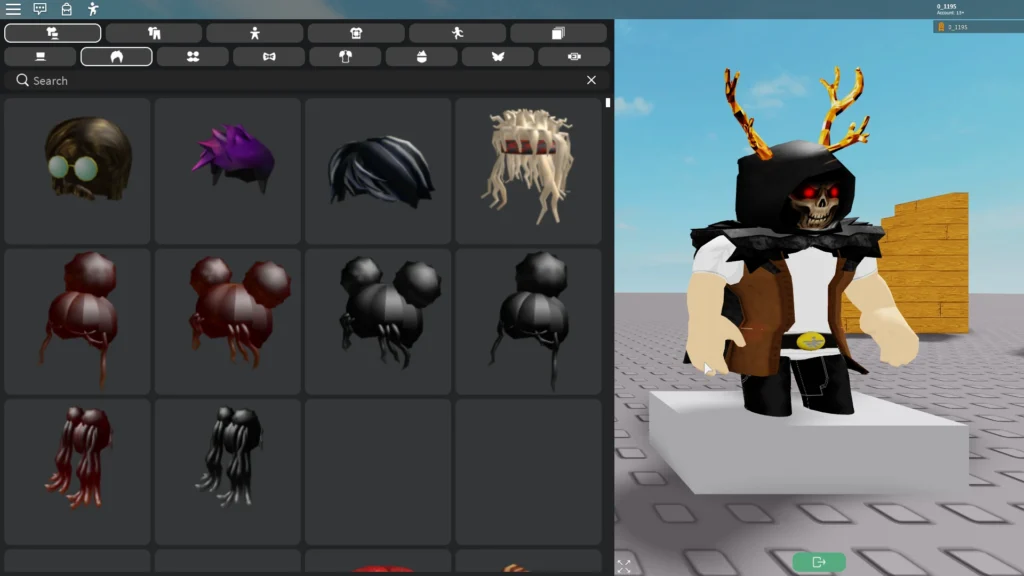
A good Roblox avatar does not need to be expensive. You can create a strong look by mixing items carefully and keeping a clear theme.
Mix Free and Premium Items
You can use free items as your base and add one or two premium pieces later if you want. This helps you build a good avatar without spending too much Robux.
For example, you can use:
- Free hair
- Free shirt or pants
- Free face accessory
- One paid hat
- One premium back accessory
This gives your avatar personality without making it expensive.
Follow Trends, But Add Your Own Twist
Roblox avatar trends change often. You may see styles like:
- Streetwear avatars
- Soft avatars
- Fantasy outfits
- Anime-inspired looks
- Sci-fi outfits
- Horror-themed avatars
- Roleplay characters
- Funny meme avatars
Trends can give you ideas, but do not copy everything exactly. Add your own color choice, accessory, or theme so your avatar feels personal.
Keep It Simple and Clean
It is tempting to equip every cool item you own, but that can make your avatar look messy.
A clean avatar usually has:
- Matching colors
- A clear theme
- A balanced outfit
- A few strong accessories
- No unnecessary clutter
Simple avatars often stand out more than overdesigned ones.
Match Colors Properly
Try to pick two or three main colors for your avatar. For example:
- Black, white, and red
- Blue, white, and gray
- Pink, white, and beige
- Green, brown, and gold
Matching colors makes your avatar look more intentional.
Check How It Looks in Games
Some avatar items look great in the editor but behave differently in games. Layered clothing, accessories, or animations may not work properly in every experience.
After saving a new outfit, join a few games and check how it looks while moving, jumping, and interacting.
Common Roblox Avatar Issues and Fixes
Sometimes your avatar may not update correctly or an item may not appear right away. Most issues are easy to fix.
Avatar Changes Are Not Showing
If your avatar is not showing recent changes, try these fixes:
- Refresh the Avatar Editor.
- Rejoin the Roblox experience.
- Restart the Roblox app.
- Log out and log back in.
- Use the Redraw option if available.
- Wait a few minutes for changes to sync.
Avatar updates are usually quick, but they may take a short time to appear everywhere.
Items Are Missing From Inventory
If an item does not appear after claiming it, wait a few minutes and refresh your inventory.
Also check:
- You are logged in to the correct Roblox account.
- The item was actually claimed or purchased.
- The item category is correct.
- The item was not removed or moderated by Roblox.
Avatar Looks Different in a Game
Some experiences override avatar appearance, body type, animations, or clothing. This is normal in games that use custom characters, uniforms, roleplay systems, or custom rigs.
If your avatar looks different only in one game, the experience is probably controlling the character design.
Clothing Does Not Fit Properly
Layered clothing and body bundles may not always fit perfectly together.
Try:
- Changing body type
- Removing oversized accessories
- Switching to a different bundle
- Using classic clothing instead
- Testing another layered item
Avatar Editor Is Not Loading
If the Avatar Editor is not loading, try:
- Checking your internet connection
- Updating the Roblox app
- Clearing browser cache
- Restarting your device
- Trying another device
- Checking Roblox server status
Most loading issues are temporary.
Can I create a Roblox avatar for free?
Yes, you can create and customize a Roblox avatar for free. Every Roblox account comes with a default avatar, and you can claim free items from the Marketplace, official events, promotions, and basic customization options.
How do I change my avatar in Roblox?
Open the Avatar Editor from the Roblox app, website, or supported console menu. Then equip different clothing, accessories, body parts, skin tone, animations, or saved outfits.
Do I need Robux to customize my avatar?
No, you do not need Robux to customize your avatar. Robux gives you access to more premium items, bundles, and accessories, but there are many free customization options available too.
Where can I get free avatar items?
You can get free avatar items from the Roblox Marketplace by using the free price filter. You may also get free items from Roblox events, promotions, collaborations, and official promo codes.
Can I save multiple outfits in Roblox?
Yes, Roblox lets you save multiple avatar outfits and switch between them later from the Outfits or Creations section of the Avatar Editor.
Why is my Roblox avatar not updating?
Avatar changes may take a few minutes to sync. Try refreshing the Avatar Editor, restarting Roblox, rejoining the experience, logging out and back in, or using the Redraw option if available.
Why does my avatar look different in some games?
Some Roblox experiences use custom characters, uniforms, body types, or animations. In those games, your normal avatar may not appear exactly as it does in the Avatar Editor.
