
Roblox is a social platform at its core, and from my experience, it feels a lot more fun when you play with other people instead of going solo every time. Adding friends in Roblox lets you team up in multiplayer experiences, join the same games faster, access Private Servers together, and stay connected while exploring different experiences on the platform.
Whether you are playing an obby, building in a sandbox game, grinding in a simulator, or just hanging out in a virtual world, Roblox becomes more enjoyable when you have friends by your side.
Roblox also now allows players to have up to 1,000 friends, which gives you more space to connect with people you know. On top of that, Roblox has Trusted Friends, a feature designed for closer connections and enhanced communication options depending on age, region, and account eligibility.
In this guide, I’ll explain how to add friends in Roblox on PC and mobile, how to accept friend requests, how to remove or block someone, and what to do if you cannot send a friend request.
How to Add Friends in Roblox
To add friends in Roblox, search for the player’s username, open their profile, and click or tap the Add Friend button. Once the other player accepts your request, they will be added to your friends list.
Here are the basic steps:
- Log in to your Roblox account.
- Search for the player’s username.
- Open the correct profile from the search results.
- Click or tap Add Friend.
- Wait for the other player to accept your request.
- Once accepted, they will appear in your friends list.
After that, you can see when they are online, join supported experiences together, chat if your settings allow it, and play Roblox more easily as a group.
Why Add Friends in Roblox?
Roblox becomes much more fun when you have a group of friends to play with. There are millions of experiences on the platform, and many of them are built around teamwork, competition, roleplay, or social interaction.
Here are some good reasons to add friends in Roblox:
Play Together
The biggest reason to add friends in Roblox is simple: you can play together more easily. Instead of searching for each other every time, you can open your friends list, check who is online, and join supported experiences faster.
This is useful for:
- Obby games
- Tycoon games
- Roleplay experiences
- Fighting games
- Simulator games
- Survival games
- Private Server sessions
Like real life, Roblox is usually better when you are playing with people you enjoy spending time with.
Join Private Servers
Adding friends also makes it easier to join Private Servers together.
Many Roblox experiences allow players to create or join Private Servers. These servers are useful when you want a quieter space to play, build, record content, practice, or hang out without random players interrupting your session.
However, Private Server access depends on the specific experience and its server settings. Some are free, some cost Robux, and some only allow invited players.
Chat and Interact
Roblox also includes chat and social features that help you stay connected with friends. You can coordinate game sessions, invite people to experiences, and keep in touch while playing.
Roblox also offers Trusted Friends for closer connections. These features may unlock enhanced communication options, but availability depends on your age group, region, account settings, and Roblox safety rules.
How to Add Friends in Roblox on PC
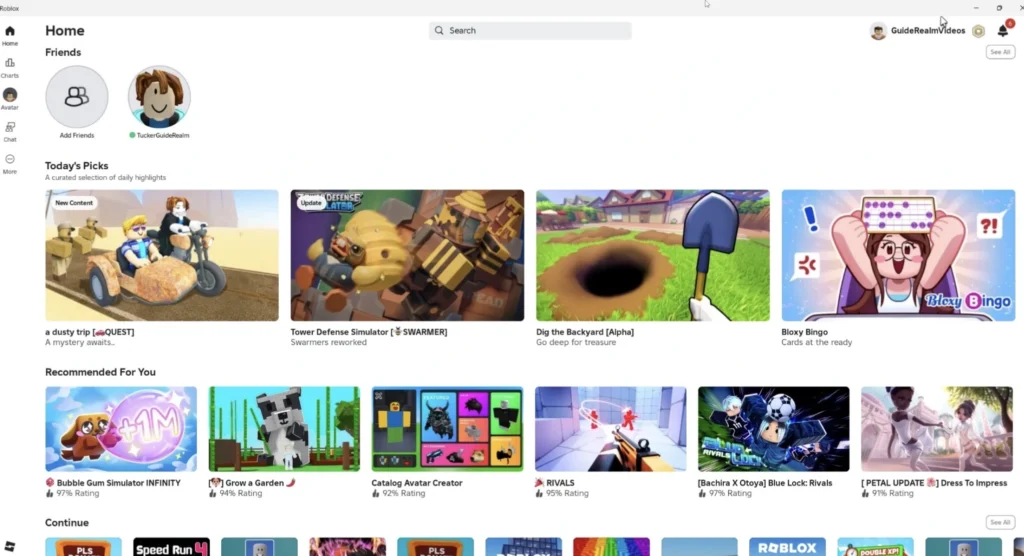
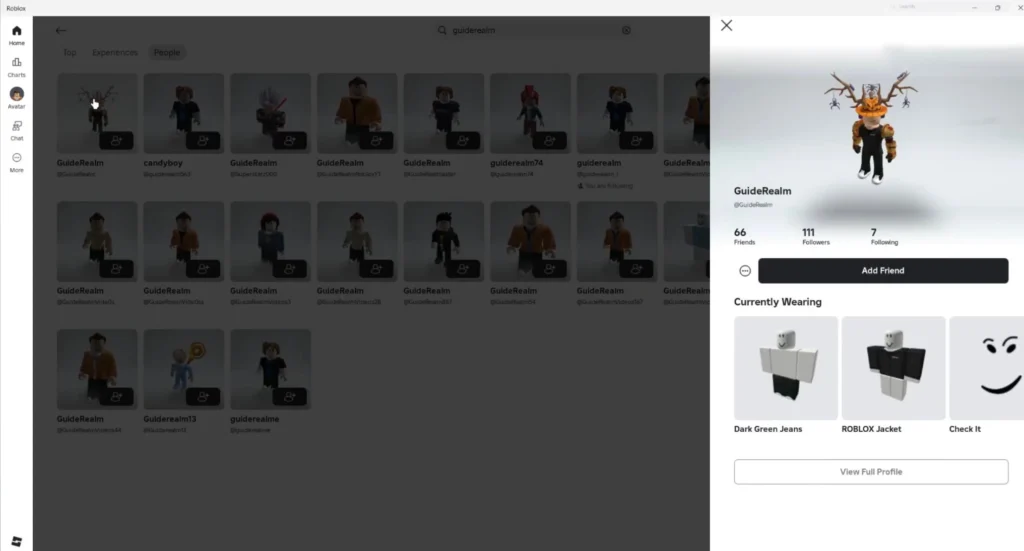
Adding friends on PC is simple, whether you use the Roblox website or desktop app.
Follow these steps:
- Log in to your Roblox account.
- Use the search bar at the top of the screen.
- Type the username of the player you want to add.
- Search under the People category.
- Click the correct username to open their profile.
- Click the Add Friend button.
- Wait for the player to accept your request.
Once they accept, they will appear in your friends list. From there, you can check when they are online and join supported games together.
Before sending a request, double-check the username carefully. Many Roblox accounts have similar names, numbers, or display names, so make sure you are adding the right person.
How to Add Friends in Roblox on Mobile
You can also add friends directly from the Roblox mobile app on Android or iPhone.
Follow these steps:
- Open the Roblox app.
- Sign in to your account.
- Tap the More button or Friends section, depending on your app layout.
- Tap the search icon or search bar.
- Enter your friend’s username.
- Open their profile from the results.
- Tap Add Friend or the add button next to their name.
- Wait for them to accept your request.
If you already sent a request, the profile may show Pending instead of letting you send another one.
How to Accept Friend Requests in Roblox
Sometimes, other players will send you friend requests first. You can accept or decline them from the Friends or Notifications area.
On PC, follow these steps:
- Open Roblox.
- Go to the Friends section.
- Check your pending friend requests.
- Click Accept to add the player.
- Click Decline if you do not want to add them.
On mobile, follow these steps:
- Open the Roblox app.
- Tap More or Friends.
- Go to the Requests tab.
- Tap Accept or Decline.
Roblox friend requests do not stay forever. Pending friend requests expire after two years, so old requests may disappear automatically.
How to Remove a Friend in Roblox
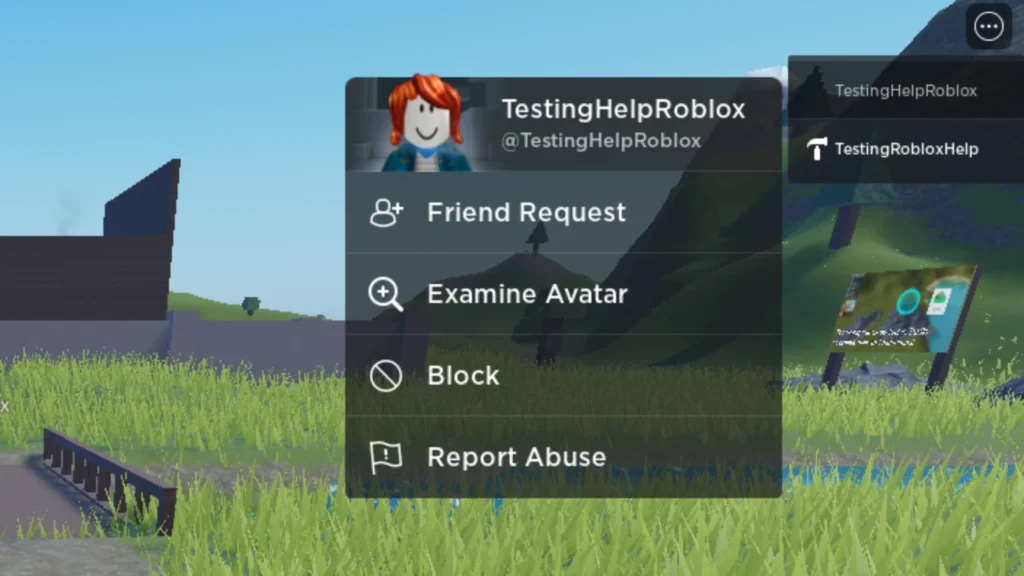
If you no longer want someone on your Roblox friends list, you can remove them from their profile.
Follow these steps:
- Visit the player’s profile.
- Open the menu on their profile page.
- Select Unfriend, Remove Friend, or Disconnect, depending on the option shown.
- Confirm the action if Roblox asks.
Once removed, that player will no longer appear in your friends list. If you want to add them again later, you will need to send a new friend request.
How to Block Someone in Roblox
If you do not want someone to interact with you, you can block them.
Follow these steps:
- Open the player’s Roblox profile.
- Select the three-dot menu in the profile details section.
- Click or tap Block User.
- Confirm the action.
You can also block users while inside an experience by using the player list or menu, depending on your device and the game interface.
Blocking is useful if someone is spamming, harassing, bullying, or making you uncomfortable. You can also use Report Abuse if the player is breaking Roblox rules.
How to Find Friends Easily in Roblox
If you are having trouble finding someone, try these methods.
Use Username Search
The easiest method is to search their exact Roblox username. Display names can be similar, so the username is usually more reliable.
Ask your friend to send the exact spelling of their username, including numbers or special characters.
Use Profile Links
You can also ask your friend to send their Roblox profile link. This takes you directly to the correct profile and avoids confusion with similar usernames.
This is one of the safest ways to avoid adding the wrong account.
Use Contact Importing if Available
Roblox may allow contact importing or contact-based friend discovery on supported accounts and devices. Availability can depend on your region, age settings, permissions, and account eligibility.
Only use this feature if you are comfortable with the permissions it asks for.
Meet Friends Through Experiences and Groups
You can also meet new players through Roblox experiences and groups. However, be careful when adding strangers. It is better to add people you know, trust, or have played with safely over time.
Why You Can’t Add Friends in Roblox
If you cannot add someone as a friend in Roblox, the issue is usually related to privacy settings, friend limits, username errors, or a temporary platform problem.
Privacy Settings
The other player may have settings that limit who can send them friend requests or interact with them. If you know the person, ask them to check their privacy settings.
Friends Limit
Roblox currently allows up to 1,000 friends per account. If you or the other player has reached the limit, the friend request may not go through.
In that case, one of you will need to remove someone from the friends list before adding a new friend.
Wrong Username
This is more common than many players realize. A typo, missing number, or similar display name can lead you to the wrong profile.
Always search using the exact username, not just the display name.
You Already Sent a Request
If you already sent a friend request, you may see Pending instead of the Add Friend button. Wait for the other player to accept or decline it.
Temporary Roblox Issue
Sometimes Roblox features may not work properly due to server issues, app bugs, or connection problems. If everything looks correct, close Roblox, reopen it, and try again later.
Tips for Playing With Friends in Roblox
Once you add friends in Roblox, these tips can help you enjoy the platform more safely and easily.
Use the Friends Tab
The Friends tab is the fastest way to see who is online. If a friend is playing an experience that allows joining, you may be able to join them directly.
Try Private Servers
Private Servers are great when you want to play with friends without crowded public lobbies. They are useful for practicing, roleplaying, recording content, or hosting small group sessions.
Just remember that Private Server rules depend on each Roblox experience.
Communicate Safely
Use Roblox’s built-in communication features responsibly. Chat and Party features may depend on your age, region, account settings, and Roblox safety systems.
Avoid sharing personal information, passwords, private codes, or off-platform contact details with people you do not know.
Only Add People You Trust
Roblox is more fun with friends, but you should still be careful. Do not accept every random request just because the friend limit is high.
If someone is rude, suspicious, or asking for personal details, do not add them. Use block or report tools when needed.
How do I add someone as a friend in Roblox?
Search for their username, open their profile, and click or tap Add Friend. Once they accept your request, they will appear in your friends list.
How do I accept a friend request on Roblox?
Open the Friends or Requests section and select Accept on the pending friend request. You can also decline requests you do not want to accept.
Why can’t I send a friend request on Roblox?
This can happen because of privacy settings, the 1,000 friends limit, a wrong username, an already pending request, or a temporary Roblox issue.
How many friends can I have on Roblox?
Roblox currently allows up to 1,000 friends per account.
Do friend requests expire on Roblox?
Yes, pending friend requests expire after two years if they are not accepted or declined.
What happens when someone declines my friend request on Roblox?
If someone declines your friend request, they will not be added to your friends list. Roblox may also notify you that the request was declined.
Can I remove a friend on Roblox later?
Yes, you can remove a friend by visiting their profile and choosing the remove, unfriend, or disconnect option.
Can I block someone on Roblox?
Yes, you can block users from their profile or inside an experience. Blocking removes them as a friend or follower and prevents further direct interaction.
Are Trusted Friends the same as normal friends?
No. Trusted Friends are a closer subset of friends. Both users must agree to become trusted friends, and the available features depend on age group, region, account eligibility, and Roblox safety settings.
