
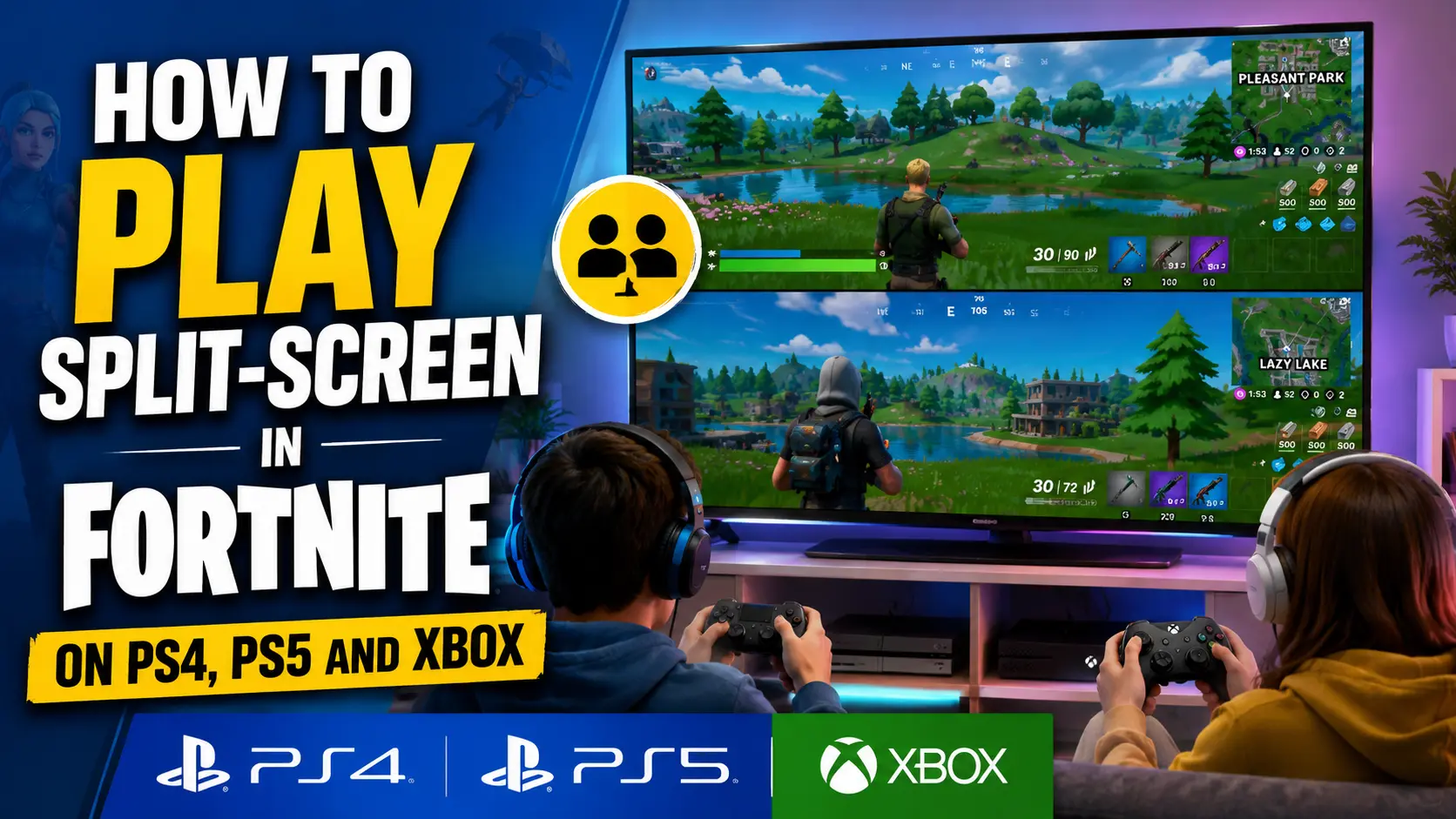
Split-screen has been a thing in gaming since the days of Halo and Gears of War, and it is still supported in major games like Fortnite. With how enjoyable couch co-op can be in Fortnite, split-screen does have its fair share of limitations. While some of them are fixable, others are not.
In this guide, I’ll lay out the steps to enable split-screen on your console, the problems you might face, supported modes, and how to fix common split-screen issues in Fortnite.
What is Split-Screen in Fortnite?
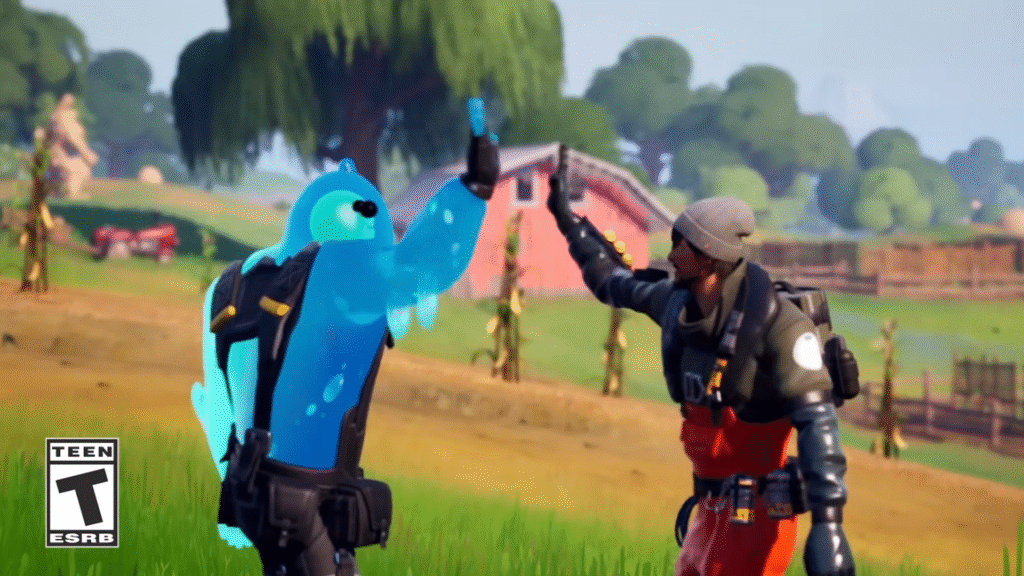
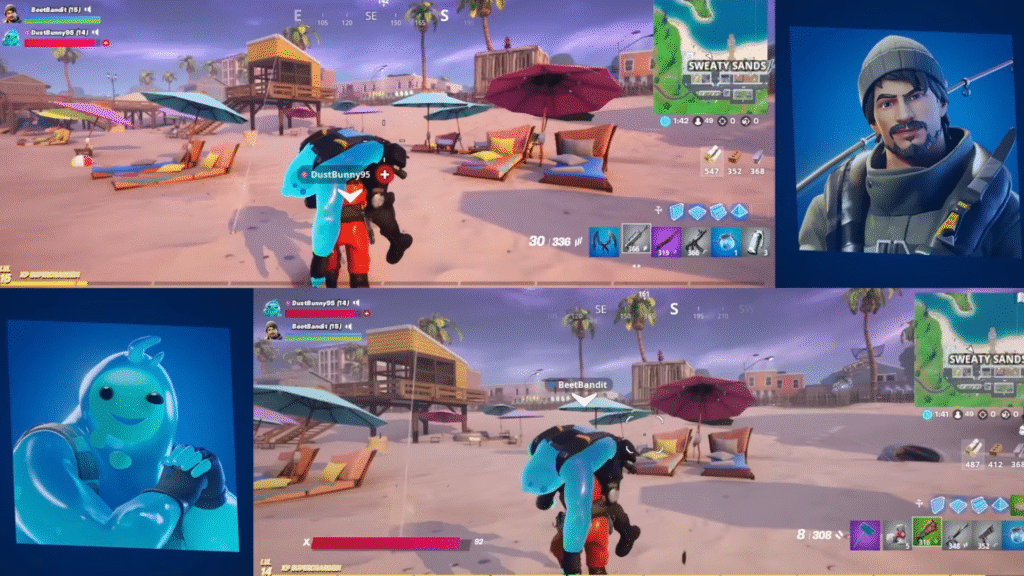
Simply put, split-screen is a local co-op feature that allows you and your friend to play on the same console at the same time. It is also known as Local Multiplayer or couch co-op.
Both players need their own controller and console account to play together side-by-side in supported Fortnite modes. Once the second player joins, Fortnite automatically starts Local Multiplayer in supported experiences.
Not every Fortnite mode is built for split-screen play, so take a look at the ones that are supported:
- Battle Royale
- Zero Build
- LEGO Fortnite Odyssey
- LEGO Fortnite Brick Life
- Other games that show the Local Players tag in Discover
Other Fortnite modes like Solos, Ranked, Save the World, Limited-Time Modes, Creative, and Team Rumble do not support split-screen play.
Requirements for Split-Screen
Split-screen requirements go beyond simply having Fortnite installed on your console, so check out what you need to start gaming with your duo locally:
- Compatible Consoles: Split-screen in Fortnite is supported only on PlayStation 4, PlayStation 5, Xbox One, and Xbox Series X/S consoles. If you have a PC, mobile device, or Nintendo Switch, split-screen will not work.
- Two Controllers: You need two controllers for split-screen play, one for yourself and another for your duo. Both controllers should be connected to the same console.
- Stable Internet Connection: Fortnite still needs an internet connection for matchmaking, even when you are playing split-screen. Make sure your connection is stable before starting a match.
- Separate Console Accounts: Both players need their own PlayStation or Xbox console account. Guest and Quick Play accounts are not supported.
- Epic Games Account Linking: After selecting the second player’s console account, Fortnite may ask them to link an Epic Games account. This helps them access their Locker outfits, Battle Pass, Quests, and progress.
- Same Language Settings: Both players must have the same language settings to use Local Multiplayer properly.
Once the second player links their Epic Games account, they can access their Locker outfits. If they are new to the game, they can also check legit ways to get free skins in Fortnite.
How to Enable Split-Screen in Fortnite
1. PlayStation (PS4/PS5)
The steps to enable split-screen in Fortnite are mostly the same for PlayStation 4 and PlayStation 5. Here’s how to do it:
- Log in to your primary PSN profile.
- Launch Fortnite and go to the lobby.
- Connect a second Dualshock/Dualsense controller.
- Select the second player’s PSN profile.
- After selecting the profile, Fortnite will automatically ask you to link your Epic Games account.
- Link your Epic Games account to access your Locker outfits, Battle Pass, Quests, and others.
- Follow the instructions on screen to complete linking your Epic Games account.
- Player Two will appear in the lobby.
- Launch a supported game mode to begin split-screen play.
Once everything is set up, split-screen will automatically begin in supported games.
2. Xbox (Xbox One/Xbox Series X/S)
The process is similar on Xbox consoles. Instead of PlayStation accounts and controllers, you need Xbox accounts and Xbox controllers.
- Log in to your main Xbox account.
- Launch Fortnite.
- Go to the Fortnite lobby.
- Connect a second Xbox controller.
- Select the second player’s Xbox account.
- If prompted, link the second player’s Epic Games account.
- Follow the instructions shown on screen.
- Wait for Player Two to appear in the lobby.
- Choose a supported mode.
- Start the match to play split-screen.
Note: Guest and Quick Play accounts are not supported for Fortnite split-screen on PlayStation or Xbox.
Supported Modes for Split-Screen
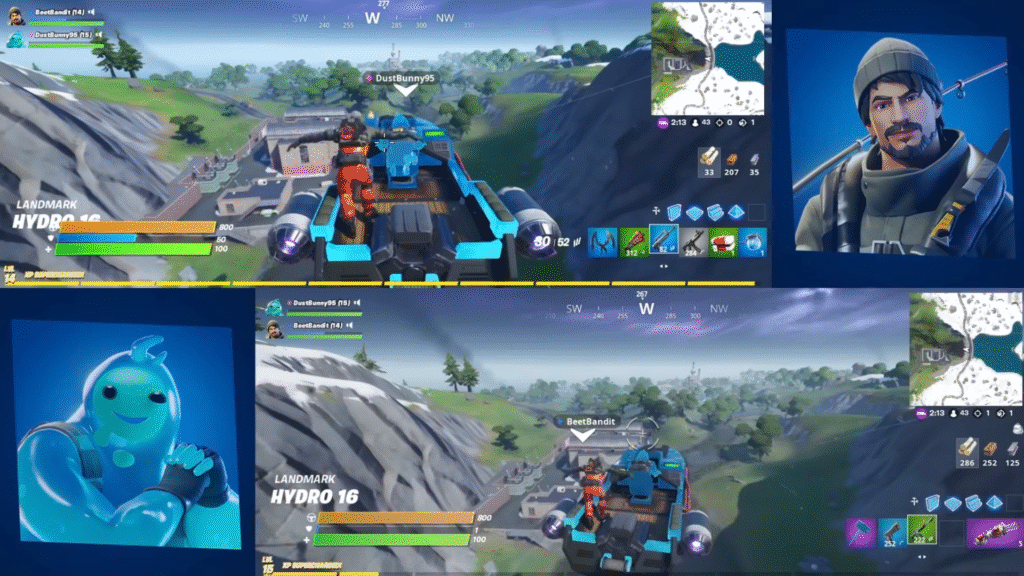
As I mentioned earlier, only a handful of Fortnite experiences support split-screen play. You can try split-screen in these:
- Battle Royale: You can play supported Battle Royale modes with split-screen on PlayStation and Xbox consoles.
- Zero Build: Zero Build also supports split-screen, making it a good option if you and your duo prefer Fortnite without building.
- LEGO Fortnite Odyssey: LEGO Fortnite Odyssey supports Local Multiplayer, so you can explore and build with another player on the same console.
- LEGO Fortnite Brick Life: LEGO Fortnite Brick Life also supports Local Multiplayer.
- Local Multiplayer Games in Discover: Once a second player is connected, open Discover and look for the Great for Local Multiplayer row or check the game details for the Local Players tag.
The options are not as wide as regular Fortnite multiplayer, but split-screen is still enjoyable if you want to play with someone on the same console.
Split-Screen Not Working? Try These Fixes
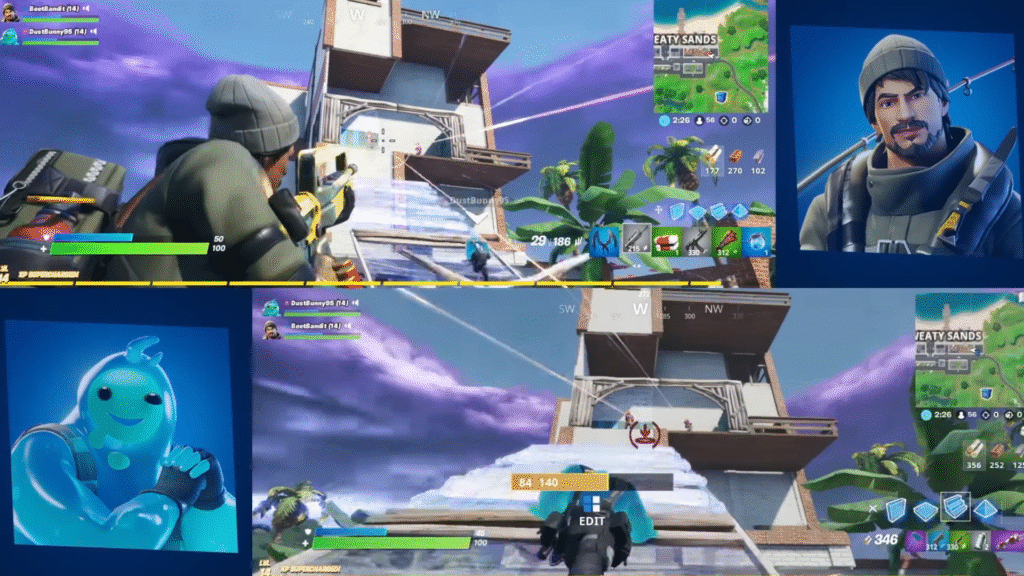
Unsupported game modes are one of the most common reasons split-screen does not work in Fortnite. If you are facing issues, try the following fixes:
- Restart Fortnite: If split-screen is not working even after following the steps above, restart Fortnite and try again.
- Check Your Internet Connection: Fortnite Local Multiplayer needs a stable internet connection. If one player disconnects or exits the match, the split-screen session will end.
- Use a Supported Mode: Make sure you are not trying to play Solos, Ranked, Save the World, Limited-Time Modes, Creative, or unsupported modes.
- Reconnect Controllers: Disconnect and reconnect both controllers. Also, make sure both controllers are charged and properly connected to the console.
- Use Separate Console Accounts: Player Two must use a proper PlayStation or Xbox account. Guest and Quick Play accounts are not supported.
- Check Epic Account Linking: If the second player is unable to join, make sure their console account is properly linked to an Epic Games account. If the second player is linking their Epic account for the first time, it is also a good idea to enable 2FA in Fortnite to keep their account, skins, and purchases secure.
- Match Language Settings: Both players must have the same language settings. If split-screen is not working, check the language settings for both accounts.
- Update Fortnite: Make sure Fortnite is updated to the latest available version on your console. Avoid mentioning an exact version number because Fortnite updates frequently.
Split-Screen Limitations You Should Know
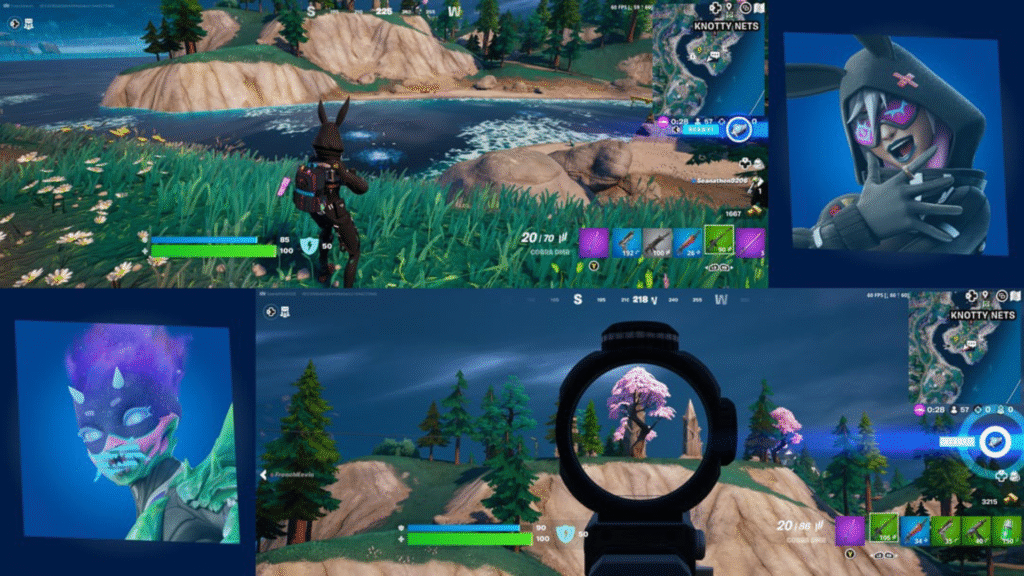
With the pure enjoyment of couch co-op comes its fair share of limitations in Fortnite. Unfortunately, there are no fixes for these limitations, and the sooner you know them, the better.
- No PC, Nintendo Switch, or Mobile Support: Split-screen is not supported on PC, Nintendo Switch, or mobile devices. You need a supported PlayStation or Xbox console.
- Not Available in Every Mode: Split-screen does not work in Solos, Ranked, Save the World, Limited-Time Modes, Creative, and several unsupported experiences.
- Lobby and Sub-Menus Are Not Shared: Local Multiplayer only works while you are in a match. The lobby and sub-menus are not shared between both players.
- No Inventory Sharing: Players cannot share inventory while using Local Multiplayer.
- Session Ends if One Player Leaves: If one player disconnects or exits the match, the Local Multiplayer session will end.
- Stable Internet Is Required: If your connection is unstable, you may face disconnects, high ping, or matchmaking issues.
Can you play split-screen on PC in Fortnite?
No, Fortnite does not support split-screen play on PC. Split-screen is available only on supported PlayStation and Xbox consoles.
Why is split-screen not working in Fortnite?
The most common reasons are unsupported game modes, unstable internet connection, disconnected controllers, guest accounts, unmatched language settings, or outdated Fortnite files.
Do both players need separate accounts?
Yes, both players need separate PlayStation or Xbox accounts. Guest and Quick Play accounts are not supported.
Is split-screen available in all game modes?
No, split-screen is not available in every Fortnite mode. It works in supported Local Multiplayer experiences like Battle Royale, Zero Build, LEGO Fortnite Odyssey, and LEGO Fortnite Brick Life.
Can you play Fortnite split-screen on Nintendo Switch?
No, Fortnite split-screen is not supported on Nintendo Switch.
Can both players use the same inventory?
No, players cannot share inventory while playing in Local Multiplayer.
Does split-screen work in Fortnite Ranked?
No, Ranked Mode does not support split-screen in Fortnite.
